|
|
|
Activation Help |
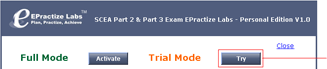
| To try the product without License key activation prior to purchase it. |
|
|
| |
| |
Click Try to use the product in Trial Mode without License key. |
| |
|
|
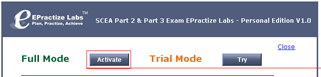
| To save the License key information. |
|
|
| |
| |
Click Activate to save the License key information. |
| |
|
|
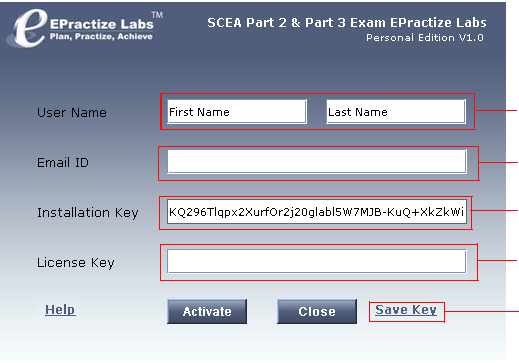
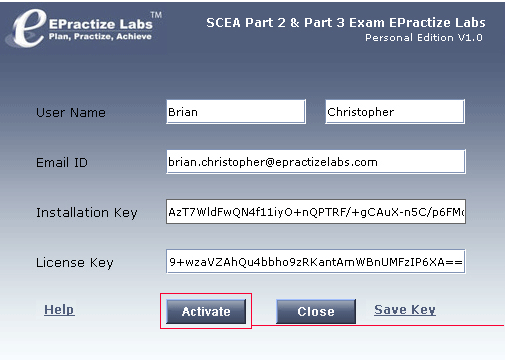
| Enter the below mentioned fields to obtain the installation key. |
|
|
| |
| |
| |
| |
| Enter your first name and last name. |
| |
| Enter your email id. |
| |
| |
| Do not change Installation key |
| |
| Do not enter anything in License Key. |
| |
| |
| Click Save Key link to save the details. |
|
| |
|
|
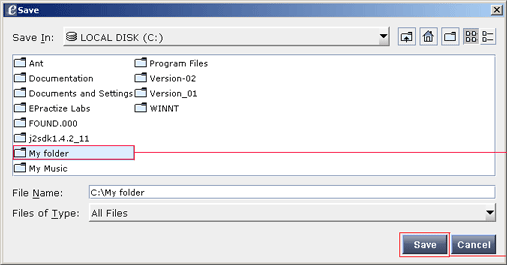
| Select the folder to save the information required to obtain the installation key. |
|
|
| |
| |
| |
| |
| |
| |
| |
| |
| Select the folder where you want to save the installation Key. |
| |
| |
| |
| Click Save. |
| |
|
| |
|
|
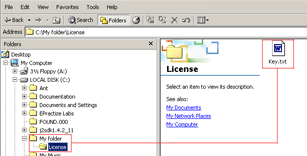
| Key.txt saves all the information like first name, last name, email id and installation key. |
|
|
| |
| |
| Key.txt saved under License folder. |
|
| |
|
|
| Contents of Key.txt |
First Name :brian
Last Name :christopher
Email ID :brian.christopher@epractizelabs.com
Installation Key :KQ296Tlqpx2XurfOr2j20glabl5W7MJB-KuQ+XkZkWiQ=
License Key : |
|
Sample Key.txt file |
| |
|
|
| After you receive the License key, activate the product. |
|
|
| |
| |
| |
| |
| |
| |
| |
| |
| |
| |
| |
| |
| |
| Copy and paste (Ctrl+v) the License key and click Activate button |
|
| |
|
|
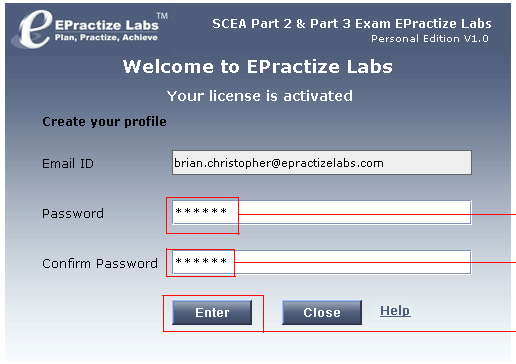
| Create your profile after successful license activation. |
|
|
| |
| |
| |
| |
| |
| |
| |
| |
| |
| Enter Password. |
| |
| Enter the same password. |
| |
| |
| Click Enter. |
|
| |
|
|
| Contact support at support@epractizelabs.com for further queries. |
| Top |


 License Activation Help